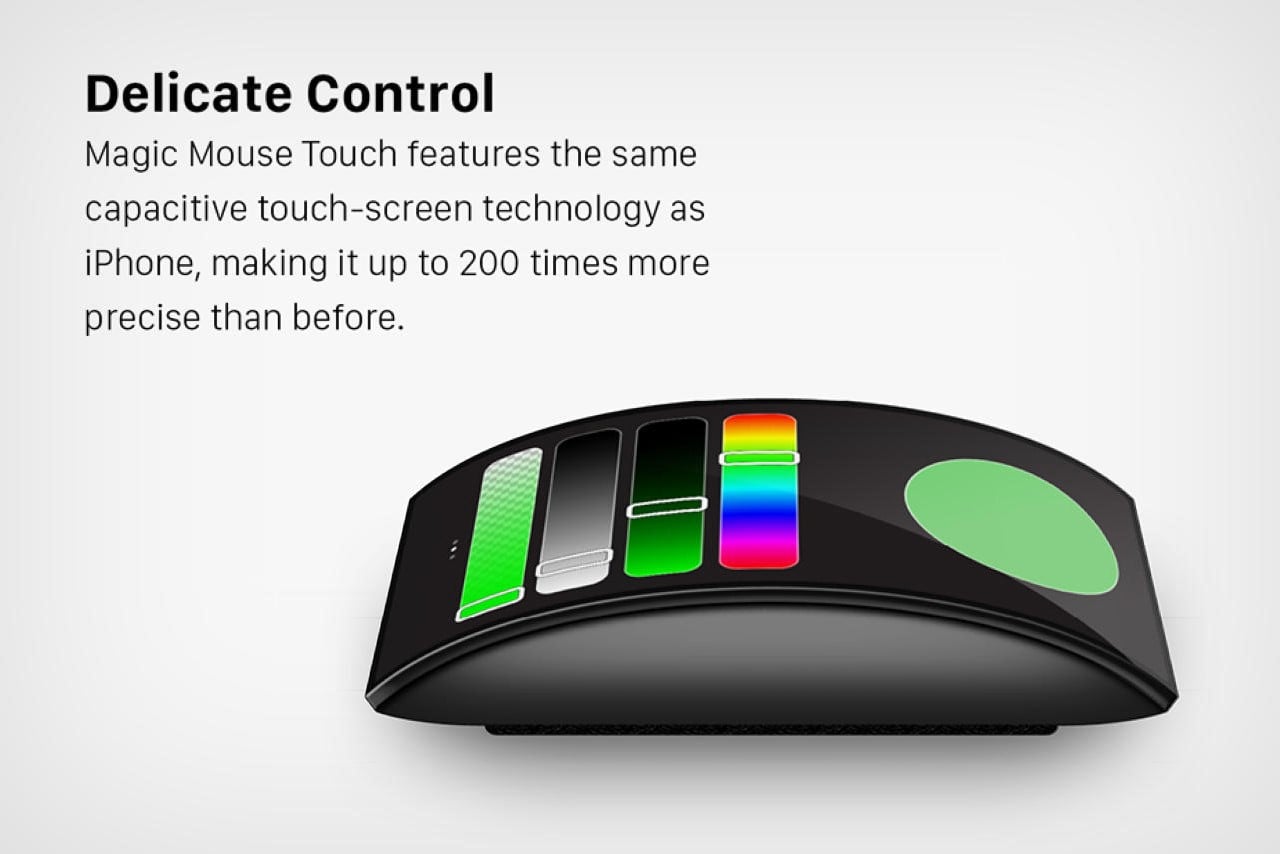
I bought it thinking I was upgrading my workflow. A sleek, futuristic mouse with a full-color touchscreen, gesture support, app integration, and “smart” button remapping. It promised precision, personalization, and a leap beyond the boring click-and-scroll routine. What I got instead was a gadget that fights me every time I reach for it — this touchscreen mouse is my over-engineering nightmare.
It doesn’t just fail to deliver. It actively degrades the experience of using a device that should be invisible — something you don’t think about. A mouse should get out of the way. This one demands constant attention, like a co-worker who insists on “optimizing” a simple task into five steps.
The Promise Was Seductive
Manufacturers sell these touchscreen mice as the next evolution of input. “Why settle for two buttons and a scroll wheel?” they ask. “Imagine a customizable interface in your hand — shortcuts, app switchers, media controls, real-time previews, all at your fingertips.”
On paper, it sounds brilliant. For creative professionals, power users, or multitaskers, the pitch makes sense. Swap Photoshop tools with a swipe. Launch Slack or email with a tap. Adjust volume or brightness without hitting keyboard keys. It all fits neatly into the modern obsession with “smart” peripherals.
But reality hits fast — and hard.
The Workflow Becomes the Work Using this mouse turns routine actions into cognitive exercises. Instead of muscle memory guiding your hand to “copy,” “paste,” or “undo,” you’re now navigating a tiny touchscreen interface that behaves more like a glitchy smartphone than a reliable input device.
Example: Want to middle-click to open a link in a new tab? On a normal mouse, it’s a simple press of the scroll wheel. On this one, the middle-click is a gesture — a two-finger tap on the screen — unless you’ve remapped it to a static button mode, which requires opening an app, syncing changes, and hoping the firmware doesn’t reset after sleep.
Another: Scrolling through a long document. Instead of smooth wheel motion, you’re dragging a finger across a touch-sensitive panel that sometimes interprets swipes as commands, sometimes ignores them, and occasionally opens a settings overlay you didn’t ask for.
The device doesn’t reduce effort. It redistributes it — from physical action to mental calibration.
Too Much Control, Too Little Consistency
The touchscreen allows for dynamic button layouts. You can have different profiles for different apps: one for Excel, one for Premiere Pro, one for coding. Sounds powerful — until you realize you’re now training your brain to recognize six different versions of “your mouse.”

Switch from Photoshop to Chrome? The button functions change. Move your hand automatically to where “undo” used to be? Now it launches a macro that mutes your mic and dims your screen. Who programmed that? Oh, right. You did — last week, in a burst of “optimization,” and forgot to label it.
This isn’t customization. It’s configuration fatigue.
And the software? Clunky. Syncing profiles across devices feels like 2010-era Bluetooth pairing. Updates break existing mappings. The touchscreen calibration drifts after a few days, so taps register 2mm off-center. You start questioning whether the problem is the device or your reflexes.
Physical Design Suffers for Tech
To fit the screen, the mouse is bulkier, heavier, and less balanced. The touchscreen sits right where your index finger naturally rests — meaning accidental touches are inevitable. Resting your hand? Might trigger a shortcut. Adjusting grip mid-click? Could open a menu.
Compare it to a Logitech MX Master or even a humble Microsoft Sculpt: those are shaped for endurance, for hours of use without fatigue. This touchscreen mouse prioritizes tech display over ergonomics. It’s like building a race car with the dashboard of a spaceship — impressive to look at, miserable to drive.
Battery life? Terrible. That bright screen and constant Bluetooth polling drain power in half the time of a standard wireless mouse. You’re charging it every two days, and the USB-C port is on the front, so you can’t use it while plugged in.
Real Use Cases That Backfire
Let’s be fair — there are scenarios where a touchscreen mouse could shine:
- Video editors switching between tools quickly
- Streamers launching scenes or alerts
- Traders monitoring multiple dashboards
But in practice, these use cases fall apart.
Take video editing. In theory, you map your most-used Premiere Pro shortcuts to the screen. In reality, the latency between tap and action — often 100–200ms — disrupts timing. You tap “ripple delete,” but the screen freezes for a split second. You tap again. Now it executes twice. Timeline ruined.
For streamers, the touchscreen might display scene thumbnails. But when your hand is already busy with a keyboard or stream deck, adding another touch-sensitive surface increases error risk. One accidental swipe during a live broadcast and you’re on a sponsored segment 10 minutes early.
And for traders? They rely on reliability, not flashy interfaces. A missed click or misregistered input due to screen lag could mean losing money. No serious trader would trust their workflow to a touchscreen mouse.
It Solves a Problem That Doesn’t Exist
The core issue? This mouse isn’t fixing a pain point — it’s inventing new ones.
We already have efficient ways to access shortcuts: - Keyboard macros - Dedicated stream decks - Mouse side buttons - Voice commands - Touchpads with gesture support
None of these require staring at a tiny screen on your mouse. None interfere with basic pointing and clicking.
The touchscreen mouse feels like a solution in search of a problem — a tech demo turned product. It appeals to early adopters and gadget lovers, not professionals who value stability and speed.
Why Simplicity Wins in Input Devices
The best tools disappear into the background. Think of a chef’s knife, a fountain pen, or a mechanical keyboard with tactile feedback. You don’t think about them — you just use them.
A mouse should be the same. Its job is to translate hand movement into cursor movement with zero friction. Anything added should enhance that core function — not distract from it.
Apple’s Magic Mouse tried something similar with its multitouch surface. Result? Widespread criticism for being too sensitive, hard to calibrate, and prone to accidental gestures. Most Mac power users switched back to third-party mice with physical buttons.
Yet here we are, with new companies reinventing the same wheel — literally — and calling it innovation.
So What Should You Use Instead?
If you’re tempted by the idea of a “smart” mouse but don’t want to fall into the same trap, consider these alternatives — all of which prioritize function over flash:
| Device | Key Strength | Best For |
|---|---|---|
| Logitech MX Master 3S | Ultra-precise scroll, silent clicks, 8K DPI | Designers, writers, coders |
| Microsoft Surface Mouse | Lightweight, reliable Bluetooth, clean design | Office work, travel |
| Apple Magic Mouse 2 | Seamless macOS integration, multitouch gestures | Casual Mac users (with caveats) |
| Razer Pro Click | Hybrid wireless, ergonomic shape, quiet switches | Remote workers, hybrid setups |
| Keychron Q6 | Mechanical keyboard-style input, customizable | Tactile feedback lovers |
None of these have screens. All are faster, more reliable, and easier to use than any touchscreen mouse on the market.
The Verdict: Innovation ≠ Improvement
This touchscreen mouse isn’t bad because it’s new. It’s bad because it misunderstands its purpose.
Technology should reduce friction, not add layers of complexity. It should serve the user, not demand constant maintenance and relearning.
I uninstalled the software. Reset the mouse to basic mode. Covered the screen with electrical tape to stop accidental touches. Now it works — barely — as a normal mouse.
That says everything.
If you value efficiency, reliability, and sanity, skip the touchscreen mouse. It’s not the future of input. It’s a detour.
Final Thoughts: Trust Your Instincts When a device makes you ask, “Why isn’t this working?” — and the answer requires checking firmware updates, recalibrating touch sensitivity, or consulting a PDF manual — it’s failed.
The real test of a tool isn’t its features. It’s how often you reach for it without thinking.
This touchscreen mouse made me think too much. And in the end, that’s why I regret buying it.
Frequently Asked Questions
Why are touchscreen mice so problematic? They introduce latency, accidental inputs, inconsistent behavior, and software dependency — all of which disrupt the seamless experience a mouse should provide.
Do any touchscreen mice work well? A few niche models show promise, but none have achieved broad reliability or user satisfaction. Most suffer from poor software, short battery life, and ergonomic compromises.
Can I disable the touchscreen? Some models allow disabling gestures or locking the screen, but you still pay for — and carry — the added weight and complexity.
Are there better alternatives for customization? Yes. Devices like the Elgato Stream Deck, programmable keyboards, or mice with physical buttons offer deeper, more stable customization without touchscreens.
Does the screen drain battery fast? Extremely. The touchscreen and backlight can reduce battery life by 40–60% compared to standard wireless mice.
Is this just a case of bad design, or is the concept flawed? It’s both. Poor execution is common, but the core idea — a dynamic interface on a mouse — conflicts with the need for speed, consistency, and ergonomics in pointing devices.
Who actually benefits from a touchscreen mouse? Almost no one in practice. It appeals to tech enthusiasts and gadget collectors, but rarely delivers value in professional or daily workflows.
FAQ
What should you look for in This Touchscreen Mouse Is My Over-Engineering Nightmare? Focus on relevance, practical value, and how well the solution matches real user intent.
Is This Touchscreen Mouse Is My Over-Engineering Nightmare suitable for beginners? That depends on the workflow, but a clear step-by-step approach usually makes it easier to start.
How do you compare options around
This Touchscreen Mouse Is My Over-Engineering Nightmare? Compare features, trust signals, limitations, pricing, and ease of implementation.
What mistakes should you avoid? Avoid generic choices, weak validation, and decisions based only on marketing claims.
What is the next best step? Shortlist the most relevant options, validate them quickly, and refine from real-world results.